
 By Yudvit Sehgal

Have you noticed a little green dot next to a friend’s Bitmoji on Snapchat? Many people who use Snapchat want to know about the green dot on Snapchat.
Snapchat has many small icons and symbols that help you understand what is going on on the app. One of them is a small green dot that appears next to a friend’s profile picture or avatar.
What Is the Green Dot on Snapchat?
The green dot on Snapchat is an activity indicator. Snapchat’s official site describes it as a signal that a contact has been active on the app. It is a small hint to let you know that your friend is near and probably will reply you soon.
This symbol doesn’t mean your friend is available and active on the app at that particular moment. As explained by Snapchat’s official site, this small green dot is shown to let you know about your friend’s recent activity on the app.
So, it is always better to assume that your friend is not available on the app if you don’t see him/her active at that moment.
Where Can You See the Green Dot?
You will see the green dot in two places on Snapchat:
- On the Chat screen, you will see it next to your friend’s profile picture or Bitmoji.
- On the Friend Profile, if your app version is old, you won’t see it there.
To know about your friend’s recent activity on the chat, you can also look for labels like “Active 5m ago” or “Typing…” etc.
How Long Does the Green Dot Stay?

One source says the green dot stays for about 10 to 15 minutes after the last activity. Another source says it can mean the user was active in the last 24 hours.
So what should you do? You should think of the time frame as flexible. If you need a quick response, look for the “Active … ago” text too.
Also Read: Best Apps to Read Books Online On Mobile
The indicator is more or less a rough estimate of recent activity, rather than a specific last-seen timer.
How to Hide the Green Dot on Snapchat?
To hide the green activity dot from your friends, Snapchat gives you an option to turn off your activity status.
You do not need to block, or remove, your friends to do so.
To do so, follow these steps:
- Open the Snapchat app on your phone.
- Tap the icon with your profile picture in the top left corner.
- Tap the gear icon to access settings.
- Tap App & Privacy.
- Tap My Privacy & Data.
- Tap Privacy Choices.
- Tap Activity Indicator.
- Turn off the Activity Indicator option.
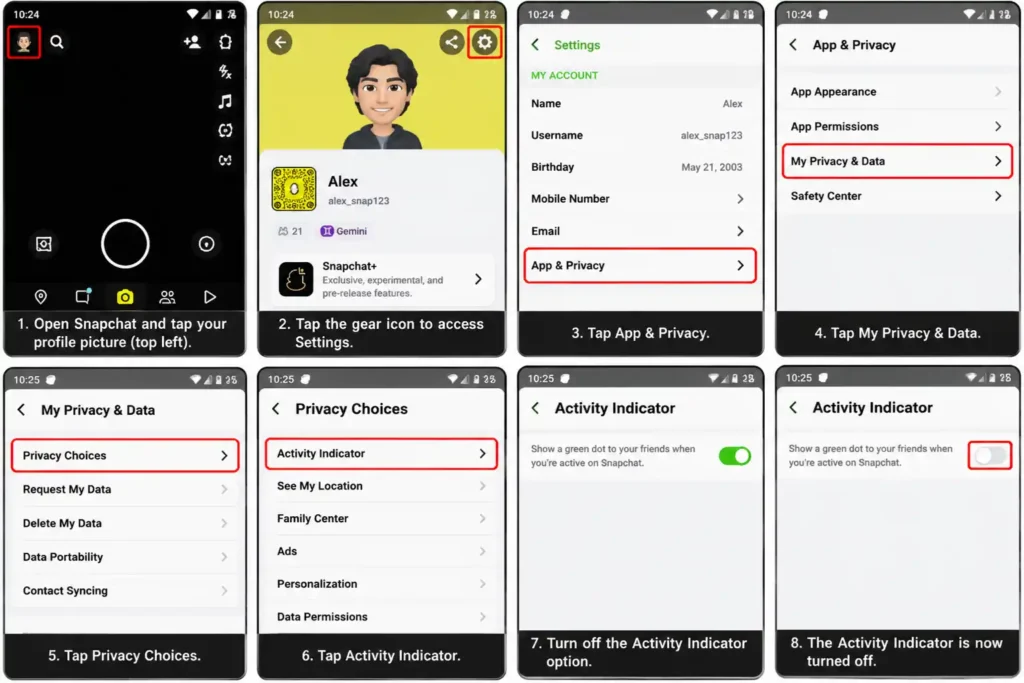
This setting will allow you to turn off the activity indicator so that others will not see it. You can turn this setting on and off as you prefer.
Note that in future updates, Snapchat may change the location of the menu. You may not be able to locate this setting. Just verify if there are recent updates for the app.
Does Ghost Mode Hide the Green Dot on Snapchat?
Many people believe that Ghost Mode automatically turns off the activity indicator and hides the green dot on Snapchat, but that is not the case. Ghost Mode keeps your location private. Turning Ghost Mode on will not hide your activity indicator and green dot.
Ask a friend to check if your location dot is visible to them to see if this feature is turning off your activity indicator. This will only take you a few minutes.
Also Read: Razer Naga Pro Wireless Gaming Mouse